

Popular
Reporting a User on Canect
1. Open the user’s profile
If you encounter a post or activity that violates community guidelines, click the user’s name or avatar in your feed to open their profile.

2. Click Report User
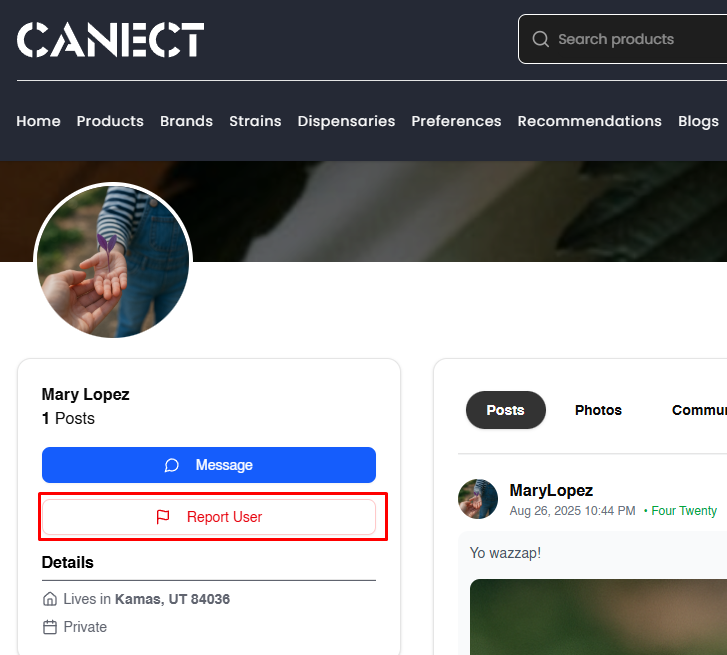
On the user’s profile page, locate the Report User button under the messaging option and click it to open the report form.
3. Select a reason
A pop‑up will appear asking for a Reason for Report. Click the dropdown and choose the option that best matches the issue you’re reporting, such as Harassment or Bullying, Spam or Misleading Content, Inappropriate Content, Fake Profile, Violence or Threats or Other.

4. Provide additional details (optional)
Use the Additional Details field to describe what happened. Including context helps moderators investigate more effectively.
5. Submit your report
When you’ve selected a reason and added any relevant details, click the Report User button to submit. Your report will be sent to the moderation team for review.

Tips for effective reporting
- Be specific: Briefly explain what happened and why it violates guidelines.
- Report responsibly: Only report users when there’s a genuine issue; false reports can delay responses to real concerns.
- Follow up if needed: If the problem persists, report again or contact Canect support.
By using the report feature thoughtfully, you help keep the Canect community safe and respectful.