

Popular
How to Create an Event on Canect
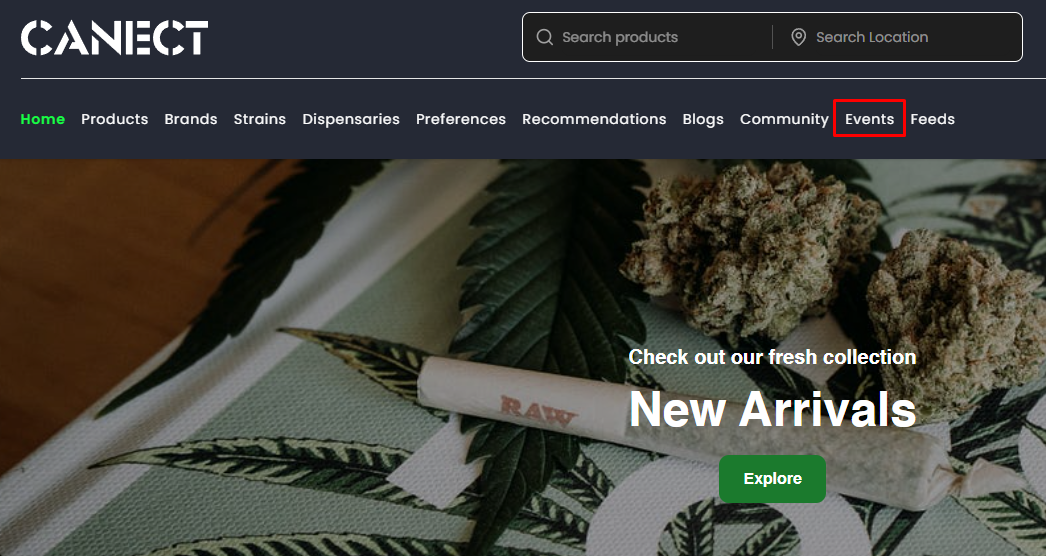
Open Events. In the top navigation, click Events.
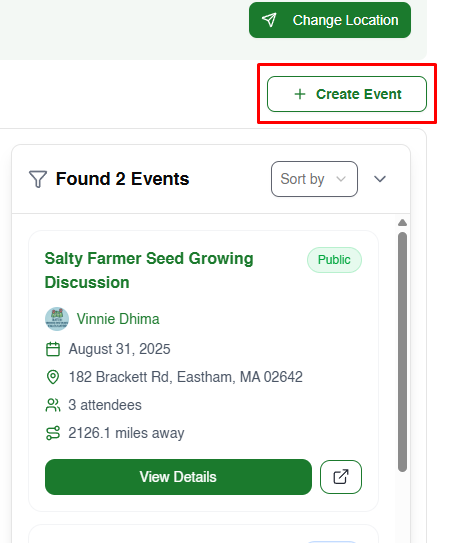
Start a new event. Click + Create Event.
Fill out all the details needed.
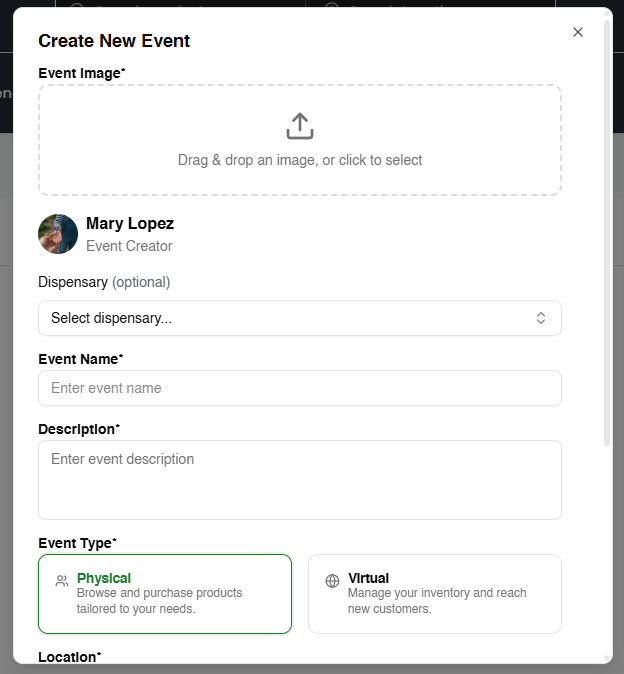
Add an image (required). Drag & drop or click to upload an Event Image.
(Optional) Link a dispensary. Use the Dispensary dropdown to associate the event with a shop.
Enter details. Event Name and Description
Choose Event Type.
Physical: in-person event.
Virtual: online event.
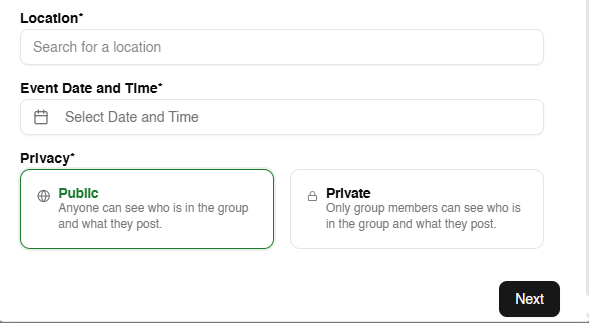
Set the location * and date & time * using the pickers.
Pick Privacy *
Public: visible to everyone.
Private: only invited people can view/participate.
Click Next.
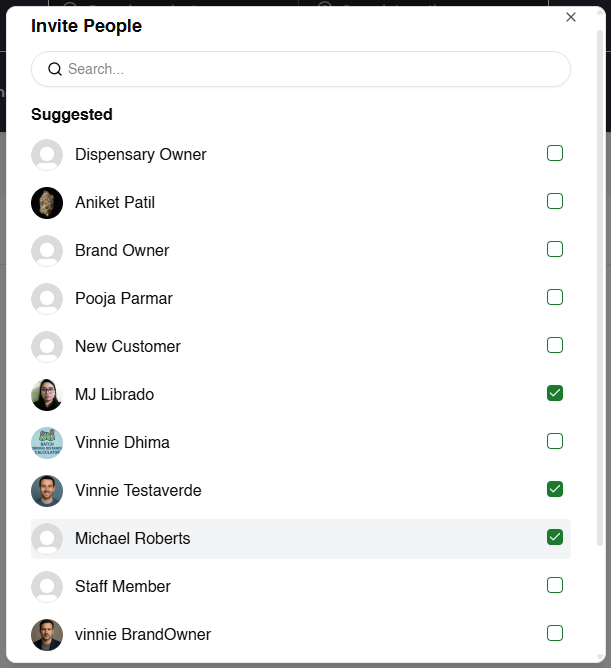
Invite people (optional). Search or select from the list, then click Create Event.
View your event. In the Events list, click View Details to open the event page.
Tips
- Make sure you are signed in to see + Create Event.
- Fields marked with an asterisk (*) are required.
- You can edit or cancel the event from its View Details page.