

Popular
Resetting Your Password on Canect
1. Request a password reset
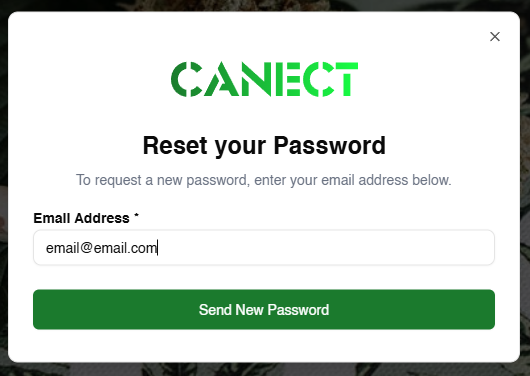
If you’ve forgotten your password, go to the sign‑in page and choose
Forgot password (or Reset your password). A popup will appear.
Enter your email address and click Send New Password.
2. Check your email for a temporary password
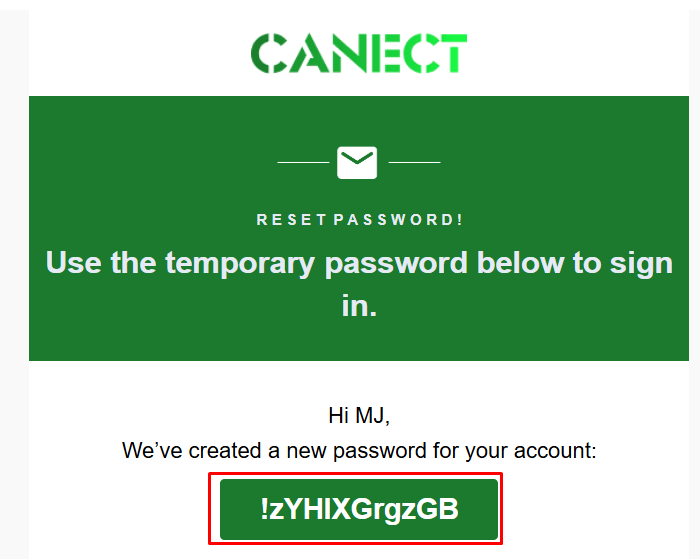
Open your email inbox and look for a message from Canect. The email will contain a temporary
password you can use to sign in. Copy this password.
3. Sign in with the temporary password
Return to Canect and log in using your email address and the temporary password. This grants you
access to your account, but you should change the password immediately.
4. Change your password
Once logged in:
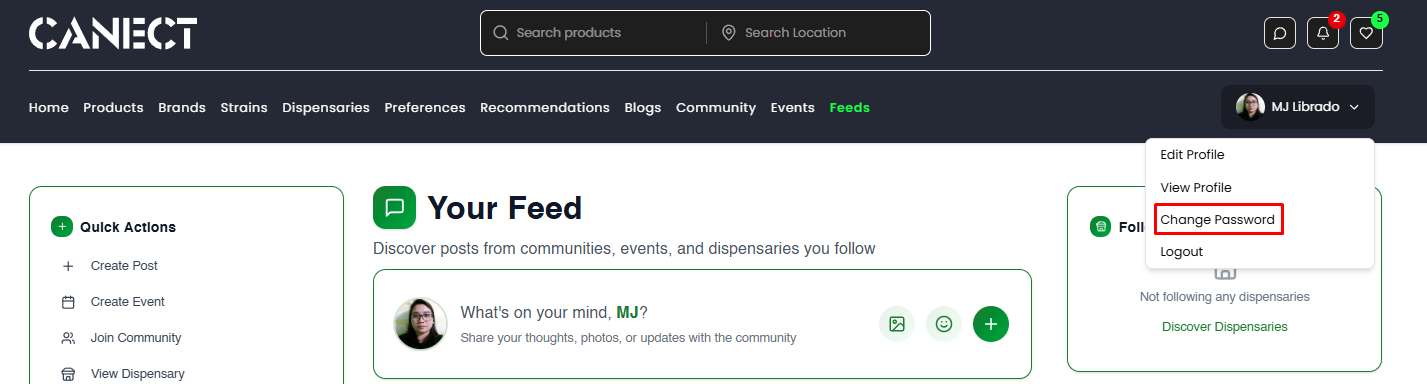
- Click your profile icon in the top‑right corner.
- Select Change Password from the dropdown menu.
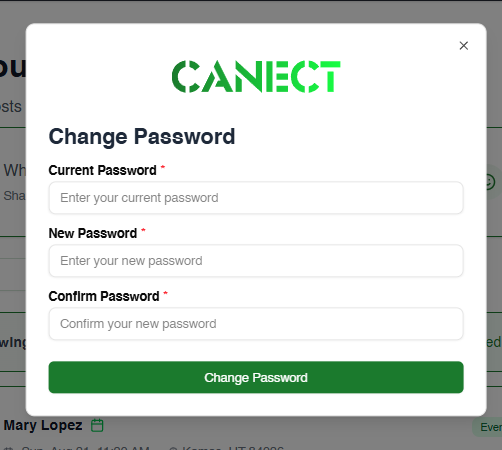
- In the Change Password window, enter:
- Current Password – paste the temporary password.
- New Password – choose a new, secure password.
- Confirm Password – re‑enter the new password.
- Click Change Password to save your changes.
Tips for a secure password
- Use a mix of uppercase and lowercase letters, numbers and symbols.
- Avoid using easily guessable information like birthdays or common words.
- Don’t share your password with anyone.
By following these steps, you can safely reset your Canect password, regain access to your account
and ensure your credentials remain secure.