

Popular
Chatting with a User on Canect
1. Visit the user’s profile and click Message
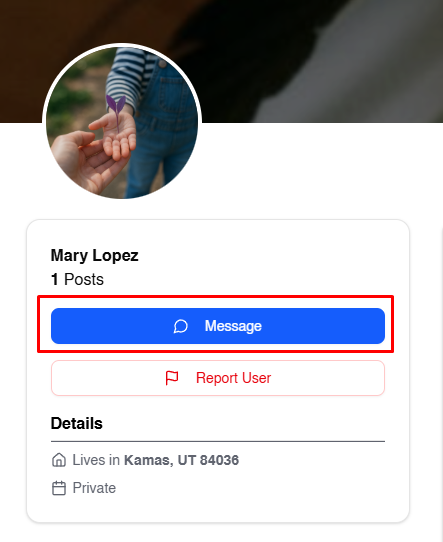
Navigate to the profile of the person you want to chat with. You’ll see a blue
Message button beneath their profile picture and name. Click this button to open a
new conversation.
2. Use the messaging interface
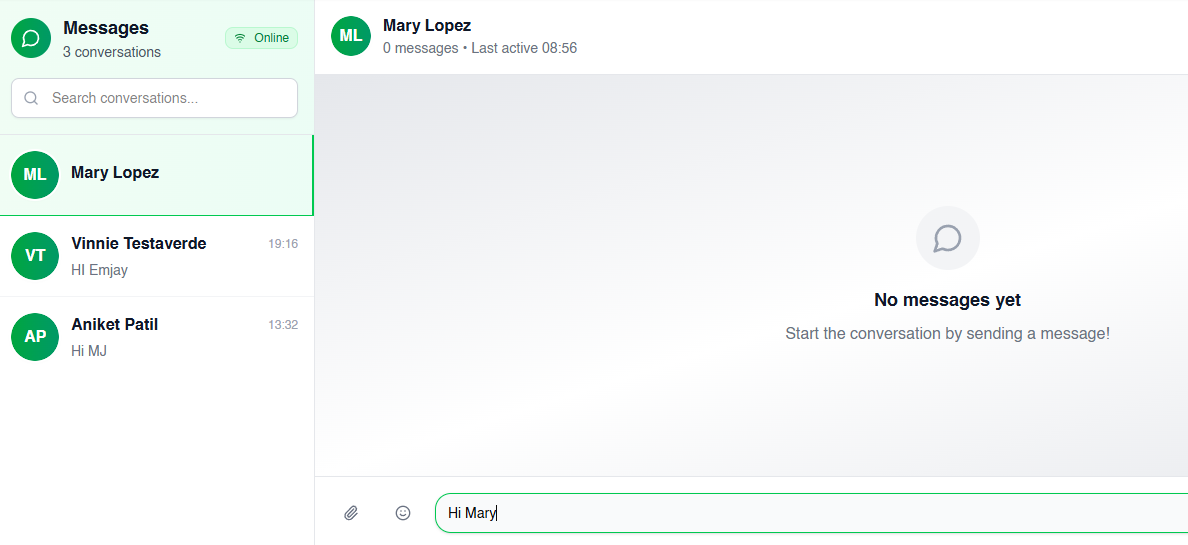
The messaging window opens with two panels:
- Left side: Shows your existing conversations. You can click on a name to switch
between chats or use the search bar to find a specific conversation. - Right side: Displays the current conversation with the selected user. At first it
may say “No messages yet,” indicating you haven’t chatted before.
3. Type and send your message
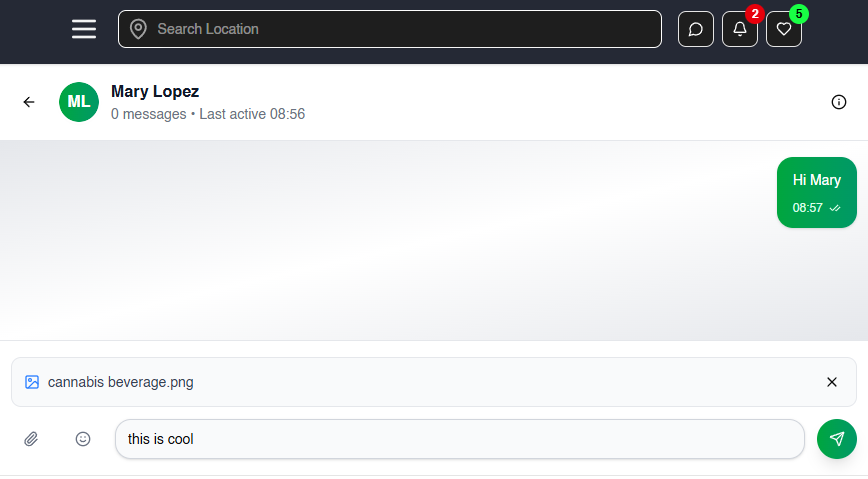
At the bottom of the conversation panel, there’s a text box. Click in the box and type your
message. You can attach a file by clicking the paperclip icon (if available). Press
Enter or click the send icon to send the message.
4. Continue the conversation
Your messages will appear in the conversation panel, and the other person’s responses will show up
as they reply. You can switch between different conversations using the list on the left.
Tips for effective messaging
- Be respectful: Follow community guidelines in your messages.
- Use clear language: Keep your messages concise and polite.
- Check your notifications: You’ll see a notification bubble if someone replies.
- Manage conversations: Use the search bar or conversation list to stay
organized.
By following these steps, you can easily start and maintain a private conversation with other
members on Canect.