

Popular
Like a Product on Canect
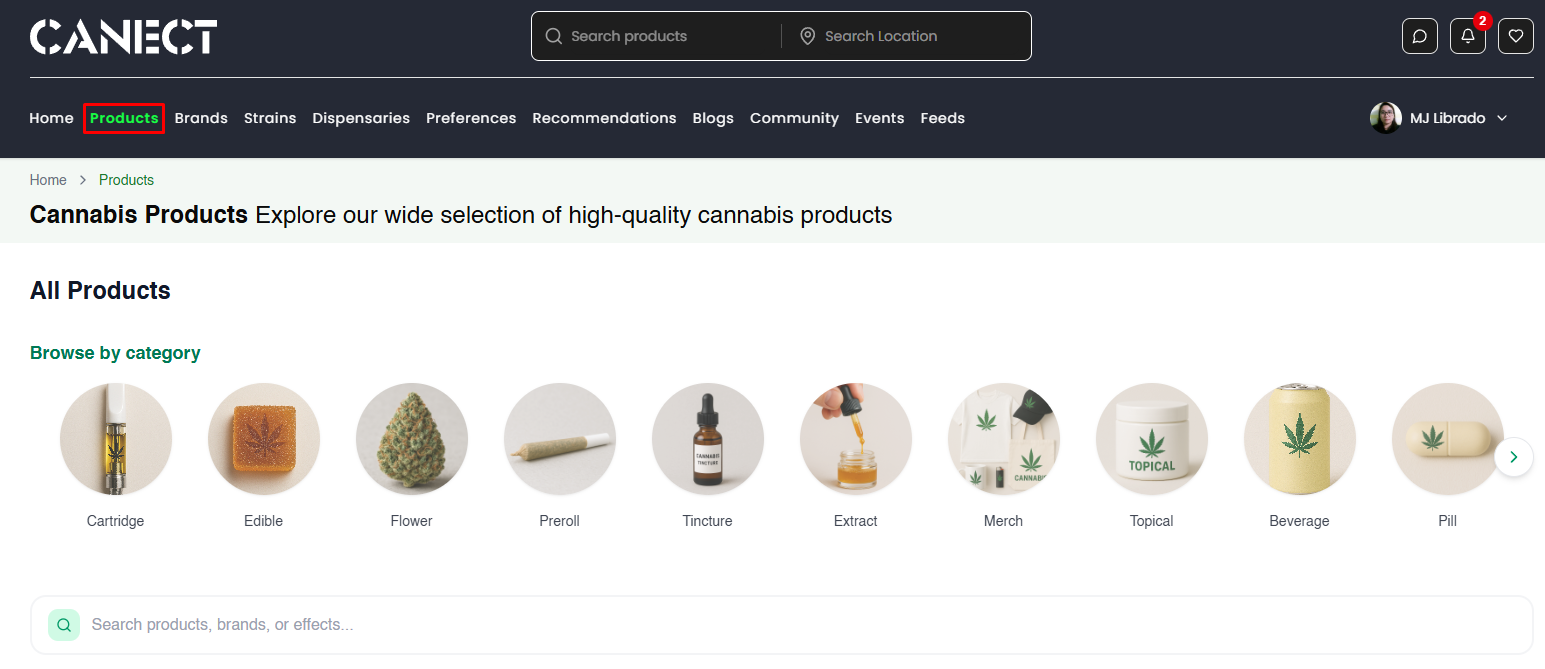
1. Open the Products page
Navigate to the Products tab in the top navigation. This page displays all available cannabis product categories, such as cartridges, edibles, flowers and more. You can browse by category or use the search bar to find specific products.
2. Find a product you like
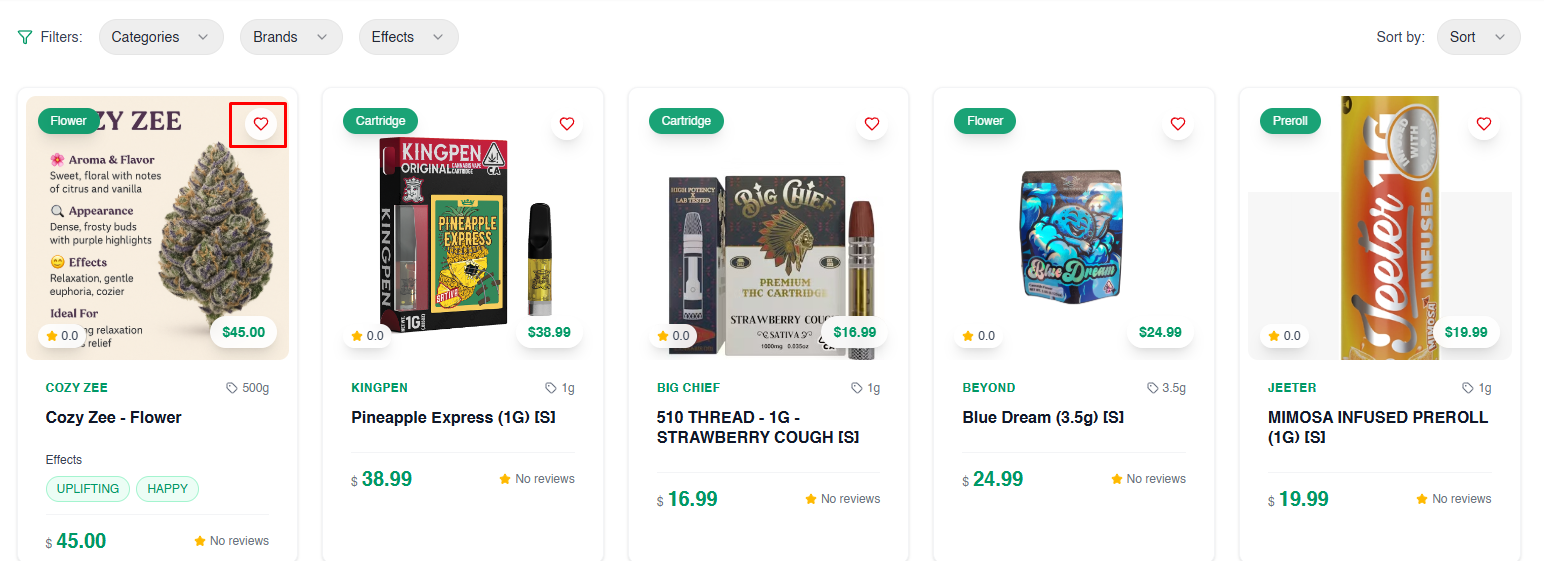
Scroll through the product listings. Each card shows the product image, name, price and rating. To save a product directly from this view, click the heart icon in the top right corner of the card. A hollow heart indicates it’s not yet saved; a filled heart means it’s already in your favourites.
3. Or view product details and like it there
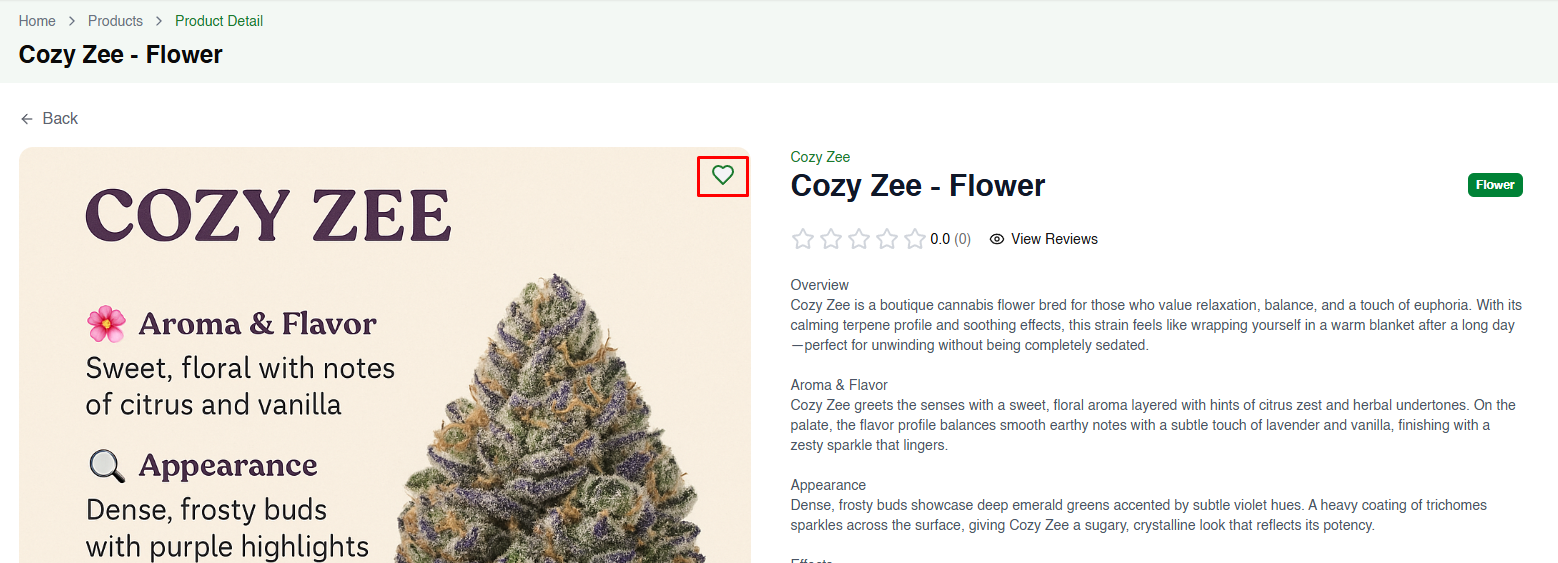
If you want more information before saving, click a product card to open its detail page. You’ll see a larger image, a detailed description, aroma/flavor notes and appearance information. Click the heart icon near the top of the page to add it to your favourites.
4. See confirmation message and Favourites icon notification
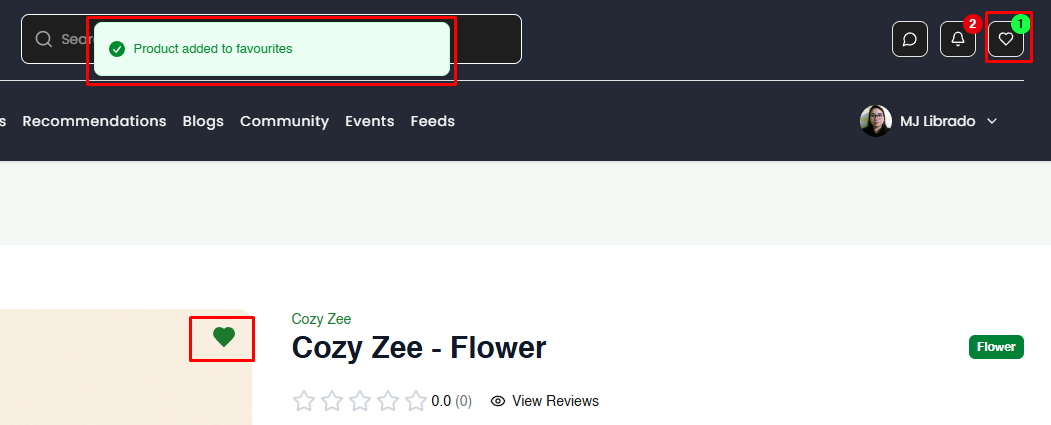
After clicking the heart, you’ll see a green banner confirming that the product was added to favourites. At the same time, the heart icon in the top menu will show a badge indicating how many products you’ve saved. You can click this heart icon anytime to open your Favourites page.
5. Manage your saved products
On the Favourites page, you can view all your liked products in one place. To remove a product, click the filled heart icon on its card—this will un‑like it and remove it from your saved list.
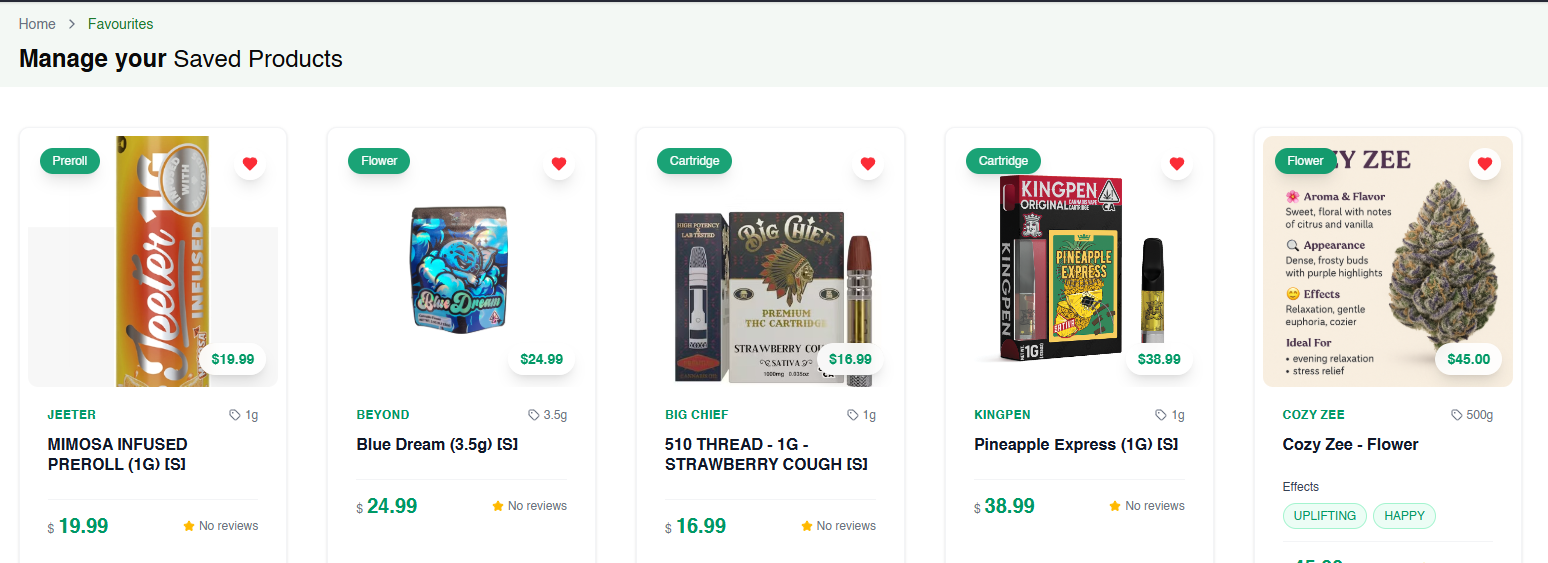
By following these steps, you can easily browse, like and manage your favourite cannabis products on Canect.