

Popular
A quick, step-by-step guide for community admins and moderators.
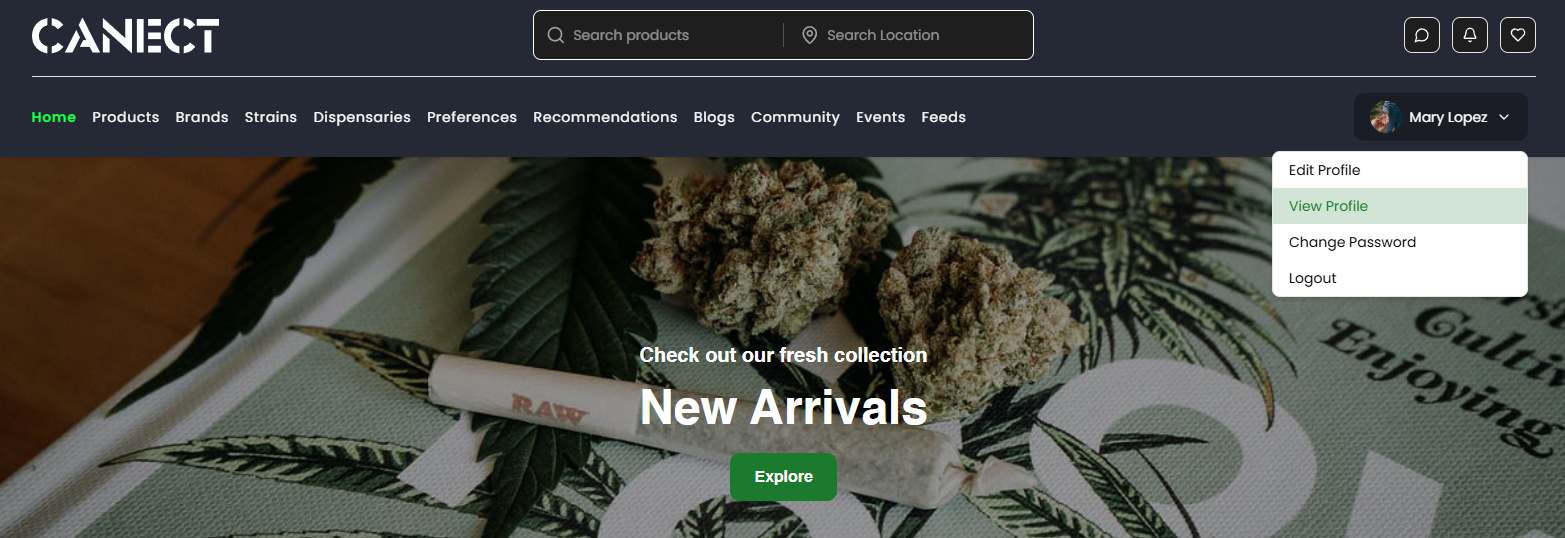
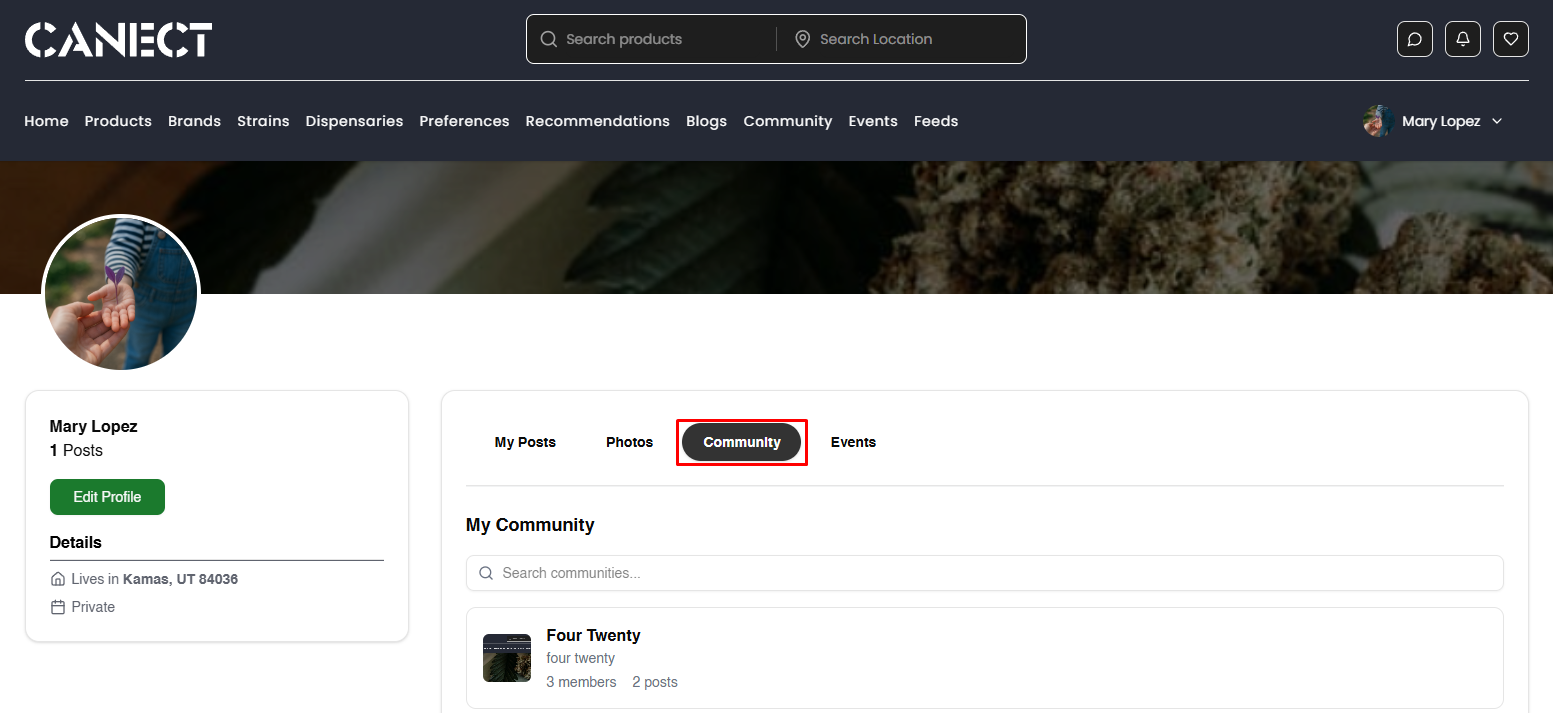
1) Open your profile and go to the Community tab
• From the top-right avatar menu, click View Profile.
• On your profile, select the Community tab. Find the community you want to manage and open it.
2) Approve or reject pending invites
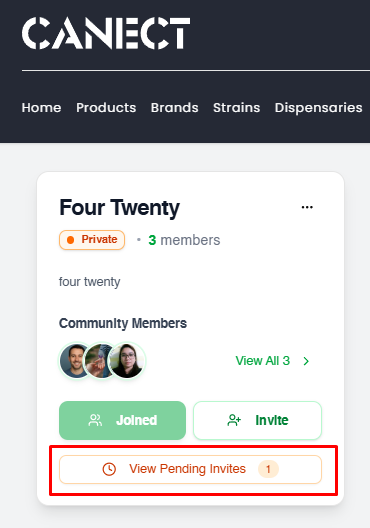
• In the community sidebar, click View Pending Invites. A dialog opens showing Join Requests.
• Click Approve to accept or Reject to decline each request.
3) Make members admins
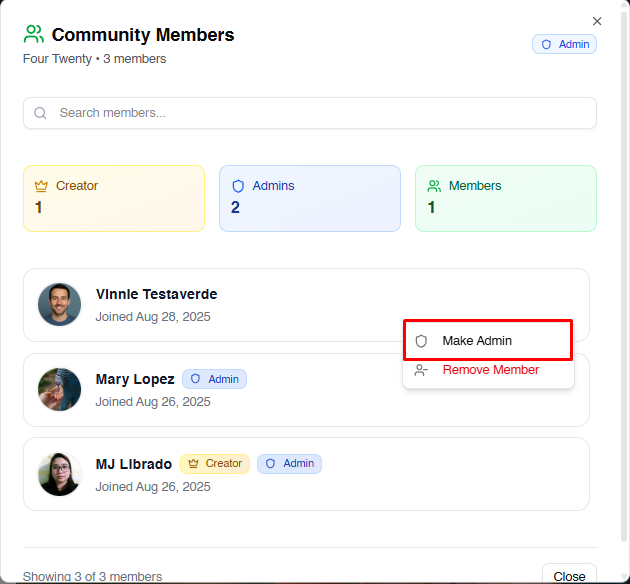
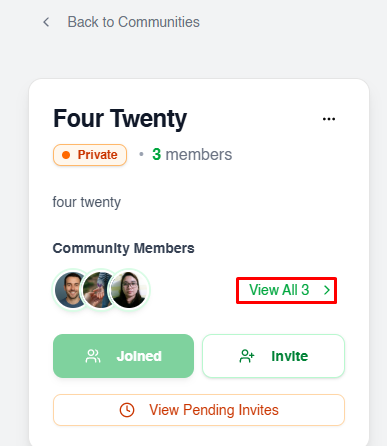
• In the community sidebar, click View All next to Community Members.
• In the member list, click the three dots next to a member and choose Make Admin.

4) Remove members
• From the same menu shown in the screenshot above, choose Remove Member. Confirm when prompted.
5) Delete or pin a post
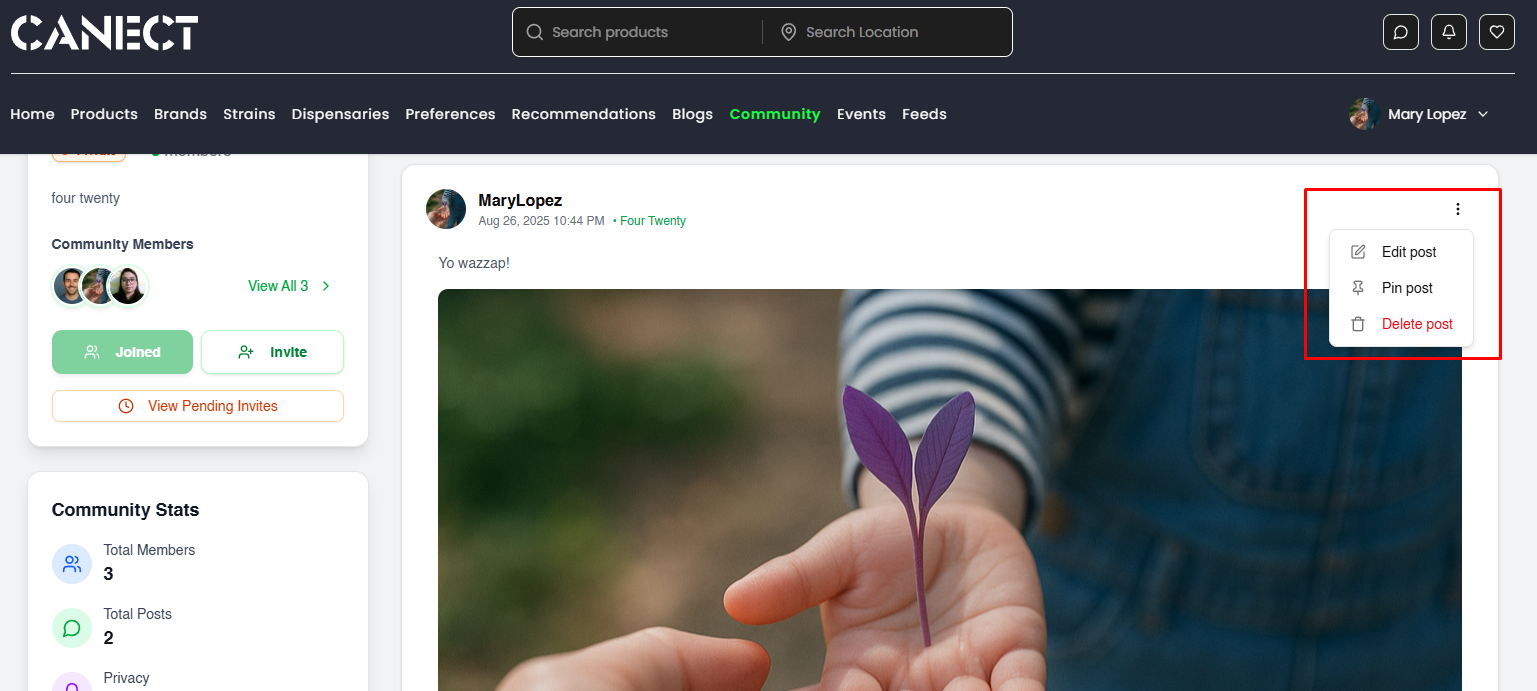
• On any post inside the community, click the post’s menu by clicking the three dots.
• Choose Pin post to keep it at the top, Edit post to update it, or Delete post to remove it.
6) Report a comment
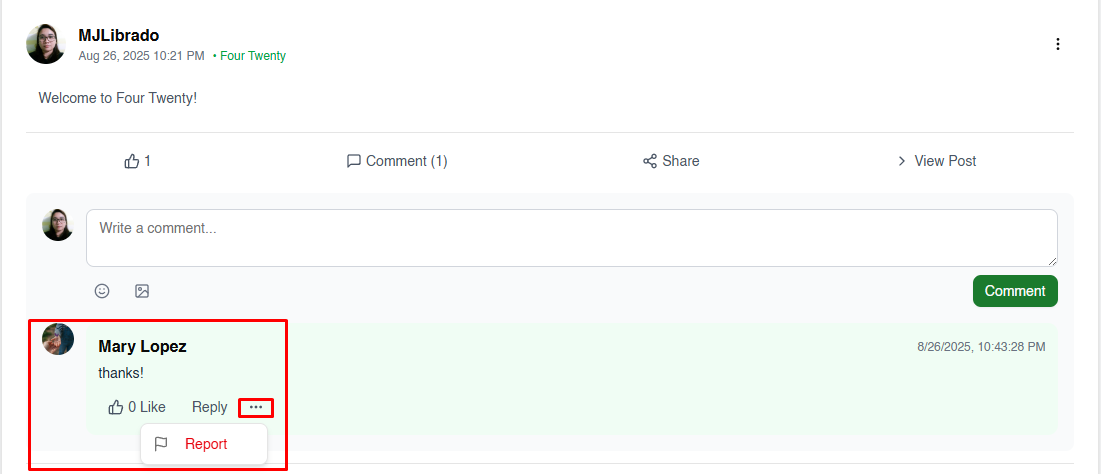
• Click the comment’s (⋯) menu. Click Report.
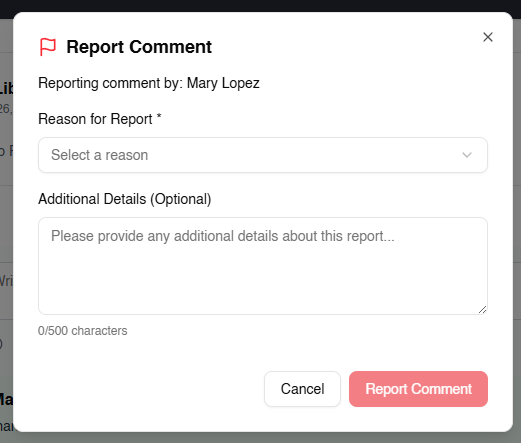
• In the dialog: select a Reason, optionally add details, then click Report Comment.
Note: reporting flags it for moderators; it doesn’t delete the comment.
Tip: Only community admins (or the creator) can approve join requests, promote members to admin, remove members, or
pin/delete posts.